

Updated
How to Share a Word Document as a Link
By João Saraiva
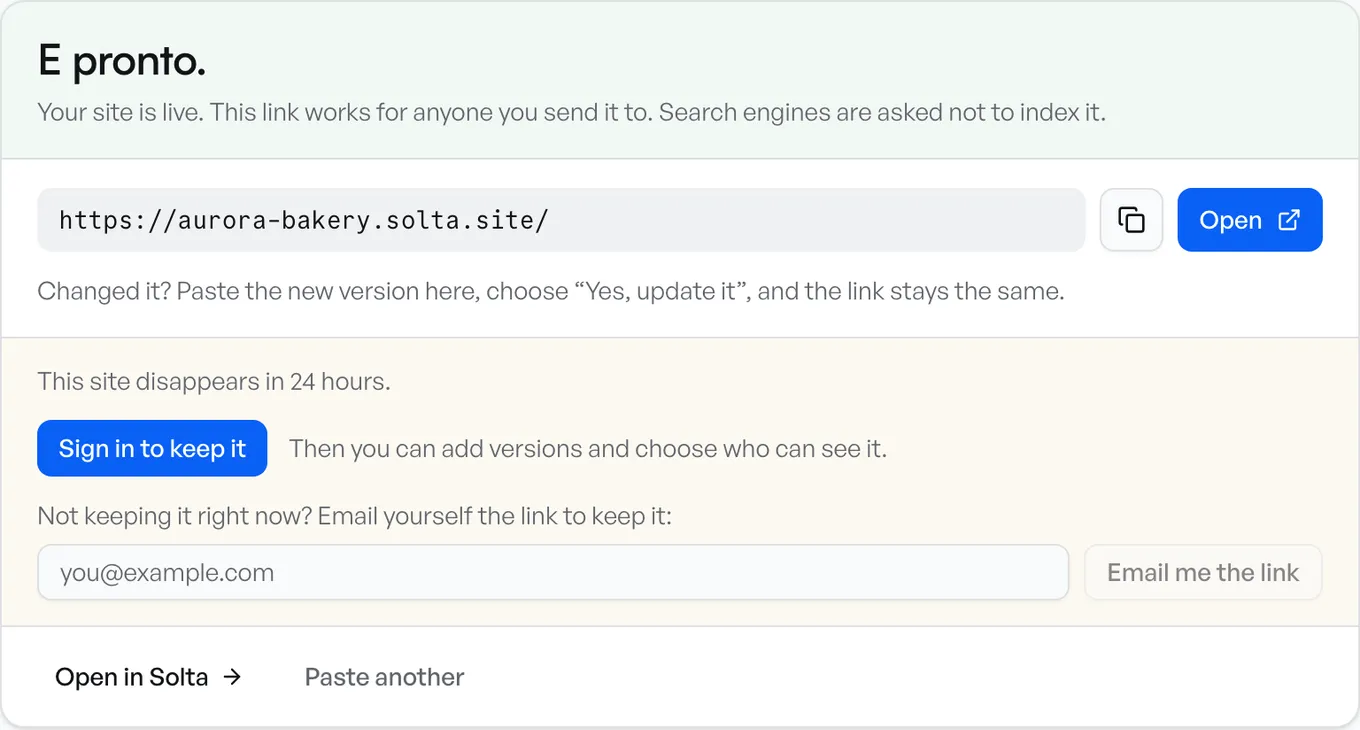
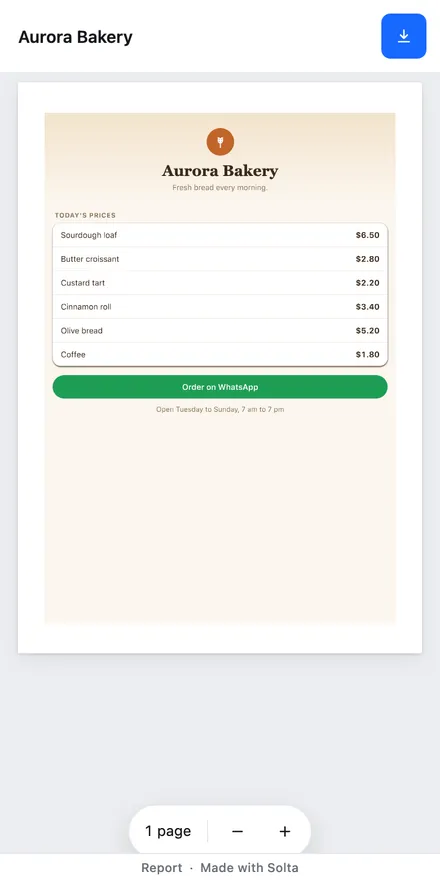
To share a Word document, put it online and send its link. In Word, select Share, and Word asks you to save the document in OneDrive if it isn't there yet. OneDrive and Google Drive each give you a link to a file you put there. Solta opens the document in any browser as pages to read, with Download for the original file. If you send proposals, contracts or price lists to clients who open them on a phone, the link is what they tap. Casa Mimo, a small business that is just starting, keeps its prices at one Solta link while its sales happen over messages.
See it work
- 1Get the link
- 2Open it on any phone
From Word, With OneDrive
In Word, select Share, in the top right corner above the ribbon. Microsoft's help page says to save the document in OneDrive first, and Word asks you to if it isn't there yet.
For a link that anyone can open, set the link from OneDrive itself:
- Sign in at onedrive.com and select the document.
- Select Share, open the link settings and choose Anyone.
- Uncheck Allow editing. OneDrive turns it on by default.
- Select Apply.
- Select Copy, and paste it into an email, a text or a chat.
With editing off, people can view, copy or download the document without signing in. A password or an end date on the link is only for Microsoft 365 subscribers.
With Google Drive
- Upload the Word document to Drive.
- Select it and choose Share.
- Under General access, choose Anyone with the link.
- Choose the role, select Copy link, then Done.
Anyone with that link can open the file without a Google account. Viewer lets people read it, Commenter lets them add comments and suggestions, and Editor lets them change it. Double-click a Word file in Drive and it opens in Google Docs.
Save It as a PDF First
A PDF is a copy of the pages for reading. Whoever gets it has the pages as you laid them out, and has no Word file to change.
- On Windows, choose File, then Save a Copy (or Save As), then Browse. Pick PDF in the list of file types and choose Save.
- On a Mac, choose File, then Save As (or Save a Copy). Pick PDF under File Format and choose Save.
Send the PDF as an attachment, or share it as a link with any of the ways on this page.
As a Link on Solta
For one document, save it as a PDF and drop the PDF on PDF to link. The link opens straight on the pages, in Solta's viewer, on a laptop or a phone.
To share the Word file itself, or several documents at one link:
- Put the documents in a folder. Word files in .docx, .doc, .odt or .rtf all work.
- Open the box, go to Upload files and use Choose folder, or drop the folder or a .zip of it.
- It publishes as soon as you choose it. The link opens on a list of the documents, and each one opens in the PDF viewer with Download for the original file. The first person to open a document may wait a moment while its pages are made.
- Sign in to keep the site. One made without an account lasts 24 hours.
The box takes a Word document inside a folder or a .zip. One file can be up to 10 MB on Free, 25 MB on Plus and 100 MB on Pro and Team.
When the document changes, publish the new version to the same site. The link stays the same, so the person who has it sees the new version, and earlier versions are kept, the last 2 on Free. How links and versions work.
Casa Mimo's prices are at one Solta link, where people see them while buying and selling happen over messages.
Which Way to Use
- They need to edit it with you: OneDrive from Word, or Google Drive with Editor.
- They should comment on it: Google Drive with Commenter.
- They only need to read it: a PDF, as a link on Solta or from Drive or OneDrive.
- Several documents for one client, at one link: a folder on Solta.
Sources
Each company's facts are what its own pages said when we read them, on 15 November 2026:
- Microsoft Word: share a document
- OneDrive: share files and folders
- Google Drive: share files and work with Office files
- Microsoft Office: save or convert to PDF
Questions
How do I share a Word document as a link?
Put it where it can be opened online and copy its address. In Word, select Share and save it in OneDrive when Word asks, then copy a link from OneDrive. On Google Drive, upload it and share it with anyone who has the link. On Solta, publish it in a folder, or save it as a PDF first.
Can I share a Word document so nobody can change it?
Yes. Uncheck Allow editing on a OneDrive link, choose Viewer on Google Drive, or send a PDF copy. A Word document on Solta opens as pages to read, with the original file only as a download.
Does the person I send it to need Word or an account?
Not to read it. A OneDrive link with editing off and a Google Drive link for anyone open without signing in, and a Solta link opens in any browser.
Can I change the document after I send the link?
On Solta, publish the new version to the same site and the same link shows it. Earlier versions are kept, the last 2 on Free.
Can I share several Word documents at one link?
Yes. Put them in a folder and publish it on Solta. The link opens on a list of the documents, and each one opens as pages with Download for the original. Google Drive and OneDrive can share a whole folder too.